Linux: Install Director and its Plugins
Note
When installing a plugin, BIM also manages the packages for its associated Bacula component (Director, File Daemon, or Storage Daemon). BIM installs the component if it is missing and may update it if it is already installed.
The following article aims at presenting the reader with instructions on how to install a Director in a certain host.
Important
It is key to remember that:
With the installation of the Director, by default you install File Daemon, Storage Daemon and bconsole on the same host.
It is recommended to install Bweb plugin along with the installation of the Director. Other plugins can be added later.
When adding plugins later, Bacula will launch the installation/upgrade process.
While going through the installation/upgrade steps again, your configuration file will not be overwritten, and when it comes to File Daemon - you will not need to register the Client in Bweb again.
Prerequisites
General Prerequisites apply here.
Steps
Note
The versions and plugins shown in this example reflect those available when this documentation was last updated. This example shows all plugins; the Installation Manager displays only the plugins included in your subscription. Available options may also change as new versions and plugins are released. These differences are expected and do not indicate a problem with your installation.
Run BIM and install the first component - Director:
./bee_installation_manager -t DIR
Confirm the Director and plugins installation with
Y.
===============================================
Installation of Director and associated plugins
===============================================
Proceed with Installation of Director and associated plugins? [Y/n] Y
Provide your download area address.
Note
To get your Download Area URL, go to your Customer Portal, click Your Subscription from the left menu, scroll down to the very bottom. You may copy your Download Area from Your Download Area section.
Please enter your Download Area URL. This information can be found in your Customer Portal in the "Your Subscription"
menu : https://www.baculasystems.com/dl/@@customer-id@@
Choose the version to be installed.
Available versions found on your Download Area for your current operating system [rhel7-64]:
---------------------------------------------------------------------------------------------
1 : 10.0.8     2 : 10.2.4     3 : 12.0.5     4 : 12.2.5     5 : 12.4.4
6 : 12.6.5     7 : 12.8.4     8 : 14.0.9     9 : 16.0.16   10 : 18.0.9
11 : 18.2.5
---------------------------------------------------------------------------------------------
Please, select the version of your Bacula Director ('18.2.5' by default) :
Choose the plugins to be installed (optional).
Note
It is recommended to install BWeb alongside the Director.
The following plugins available for the Director can be installed at version 18.2.5 :
---------------------------------------------------------------------------------------
1 : bguardian      2 : bweb           3 : callhome-dir   4 : totp-dir
---------------------------------------------------------------------------------------

Select the number(s) of the plugins you want to install, separated by commas.
Leave empty and just press <Enter> to skip plugin selection :
Proceed with Managing Firewall rules.
Note
Choose the default options proposed for the firewall setting, unless the policies of your company require different rules.
=======================
Managing Firewall rules
=======================
Proceed with Managing Firewall rules? [Y/n]

Available Firewalls
--------------------
  1 : iptables        2 : firewall-cmd
--------------------
Please, make your selection :  ('firewall-cmd' by default) :
Confirm the process with
Y.
=========================================
Ready to process the following operations
=========================================
[X] Installation of : bacula, bweb
[X] Managing Firewall rules

Continue or (r)etry? [Y/n/r]
Result
Bacula Director (and optionally Bweb) is installed.
Installation of Director Successfully completed
===============================================
If you wish to use the Bacula CLI, please type "sudo -u bacula /opt/bacula/bin/bconsole"
BWeb has been installed. It can be accessed on https://<Bweb's IP or FQDN>:9180/
===============================================
Bacula Enterprise Installation Manager. Done.
=============================================
Post-installation Suggestions
Verify Access to the Newly Installed Director
If you installed BWeb, open the address provided in the final BIM installation message. Complete the existing setup sequence below to verify its connections.
Log in as
adminwith the password set in BIM.On the welcome screen, click “Next”.
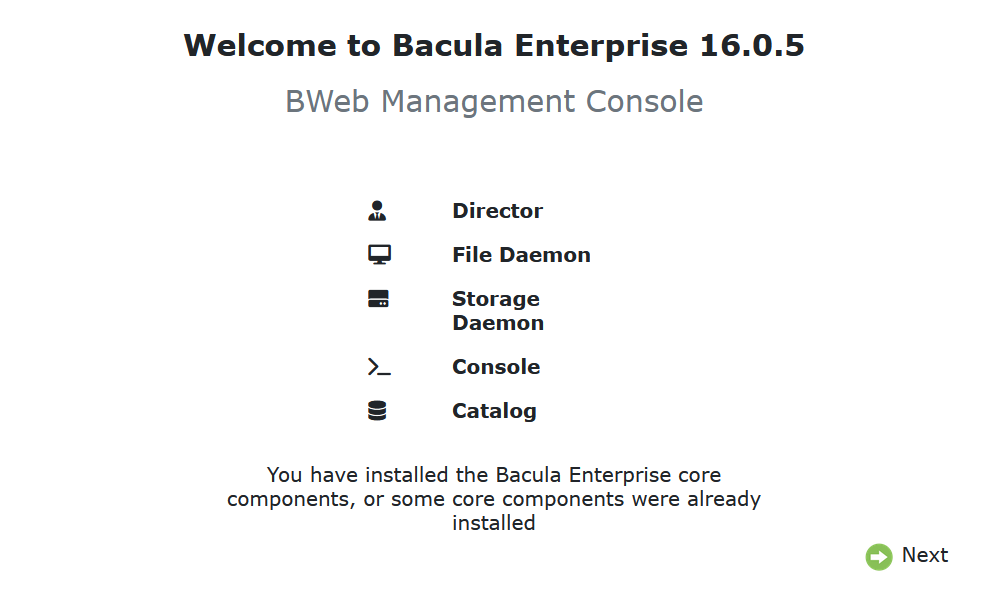
The Checking Connection screen appears.
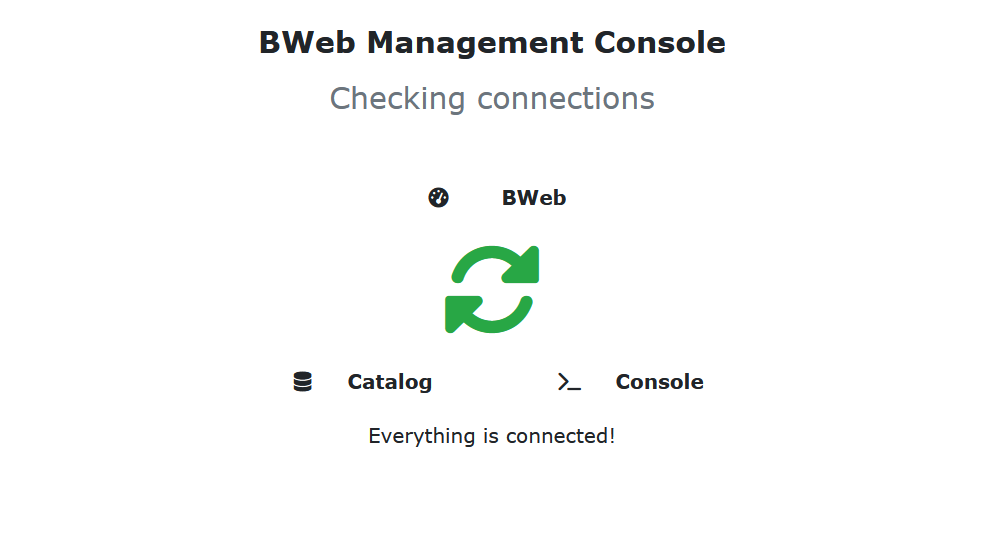
When the check finishes, the following screen appears:
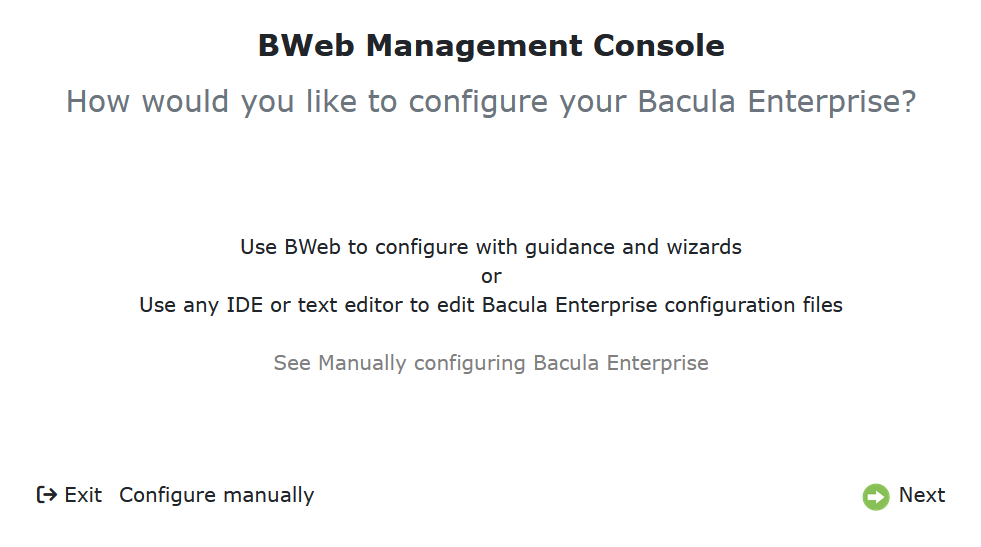
Click “Next”.
Choose the preferred configuration option.
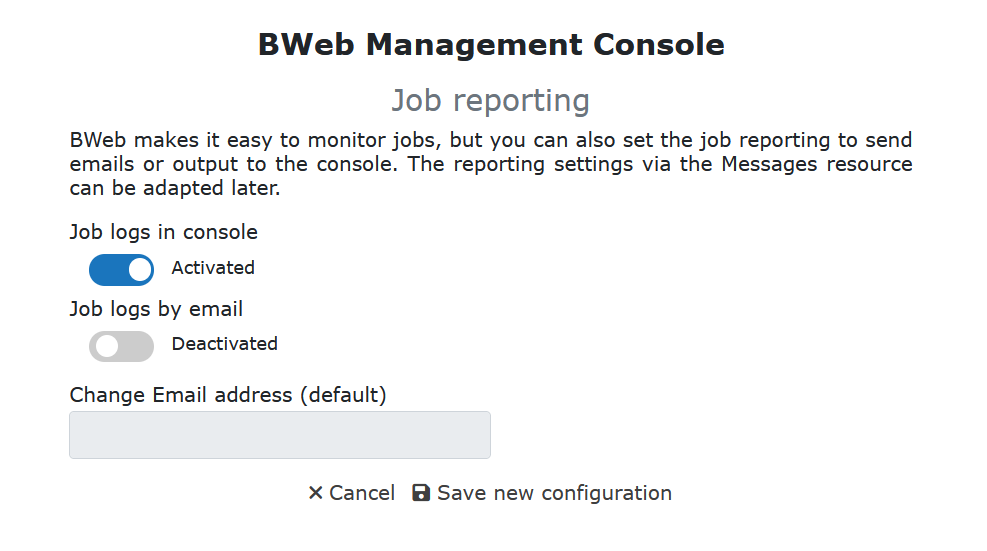
Click “Save new configuration”.
Next, verify BWeb’s connections to the Catalog and bconsole.
Navigate to “Configuration” –> “Bweb Configuration”.
Click “Edit” in the “Actions” panel.
Click “SQL Link Status” to test the Catalog connection, then “Bconsole Link Status” to test the bconsole connection.
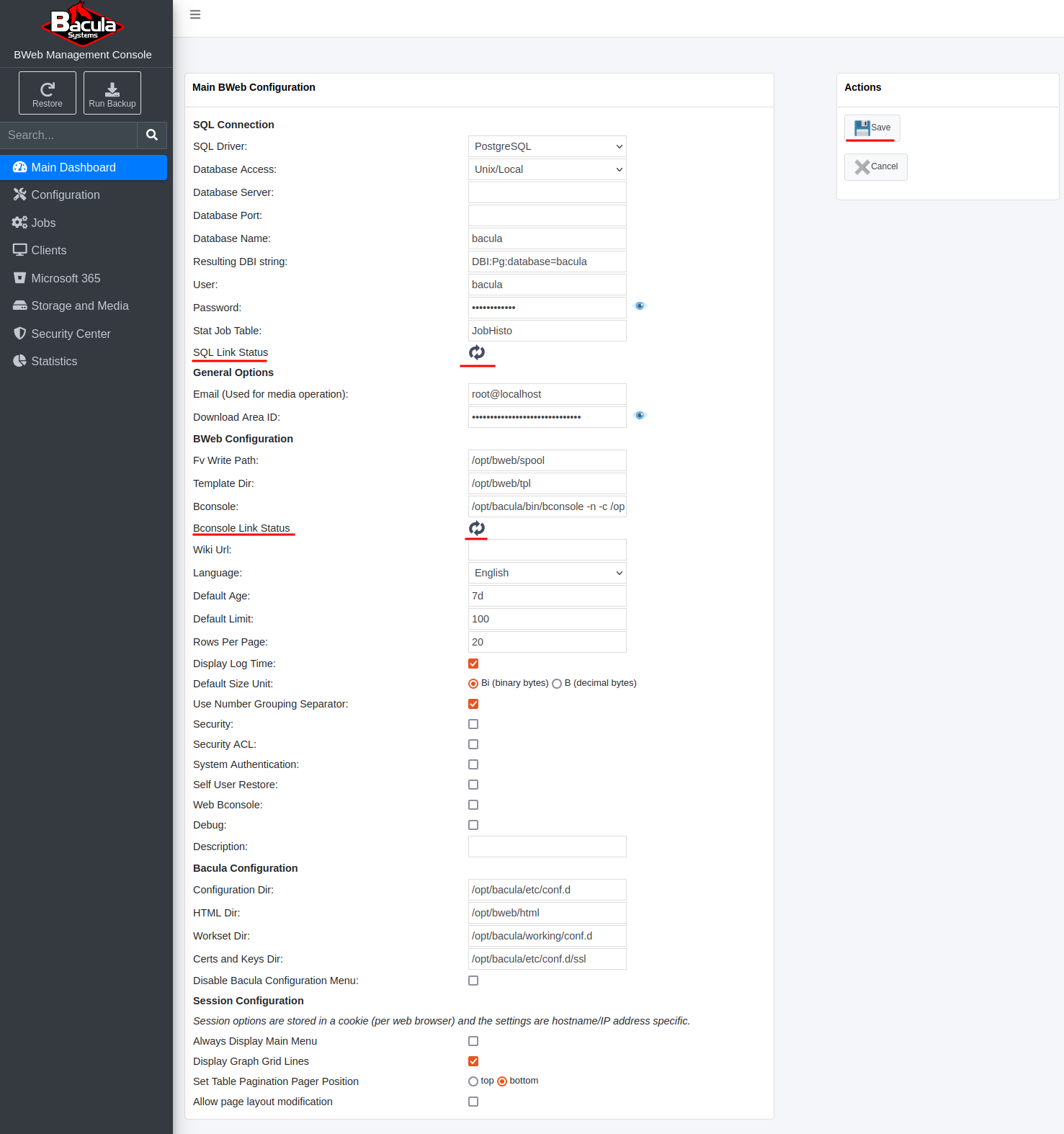
Both checks should display green check marks. Both connections are required. For an installation with BWeb, the Director, Catalog, and Storage Daemon on the same host, no further changes are needed on this page. Click “Save”.
Open “Main Dashboard” to review the Director information, including configured Clients, Catalog statistics, and Job activity. Empty Job lists are expected before any Jobs have run.
Note
The same operation is also possible from bconsole using status director.
Verify the Plugin Loading on the Director
For BWeb itself, use the login and connection checks described above. BWeb is
verified through its web interface and its connections to the Catalog and
bconsole; it is not a Director daemon plugin to look for on the Plugin: line.
Use bconsole to verify the loading of Director daemon plugins. Then complete any configuration and functional checks required by the documentation for each installed plugin.
See also
Next articles:
Go back to: Linux: Install Components.